How to Export Thunderbird Emails Without Data Loss?

Mozilla Thunderbird is an open-source email client that stores your messages but sometimes you want to move them. This can happen when you are changing your computer or when you start using Microsoft Outlook. The problem to export Thunderbird emails is that it does not provide a method to migrate your data and if you try to copy the files they will not open in other programs.
The main problem is that other applications like Outlook prefer the PST format but Thunderbird saves your data in the MBOX format. You can view the MBOX files using an Online MBOX Viewer but Outlook does not support this format. Here we will show you how to export emails using simple language that anyone can understand. We will help you export Thunderbird emails with attachments so you do not lose an important conversation whether you want a quick backup or a full move.
Hide
Why Do You Need to Export?
Let’s understand why people migrate Thunderbird emails before we look at the steps for the same. You can select the right method if you understand your goals and what you want to do.
- Switching to Outlook: Outlook cannot read Thunderbird’s files and this is the reason you have to export files from Thunderbird.
- Creating a Backup: It is smart to have a copy of your mail on an external drive in case your computer breaks.
- Freeing Up Space: You may want to export the emails to a storage folder and delete them from the application if Thunderbird is getting slow.
- Legal or Business Records: Sometimes you need a permanent and unchangeable copy of your chats.
Method 1: Manually Export Thunderbird Emails Using Save As
Thunderbird has a built-in feature to export your emails for only one or two conversations. Look at the following steps if you want to export only a few emails:
- Open the Thunderbird application and go to the folder that you want to save.
- Select the email that you want and if you want a few then hold the Ctrl key and click them one by one.
- Right-click the selected emails and click on Save As.
- Choose a folder on your computer and Thunderbird will save them as EML files.
This method only works for a small number of messages, it is not a good way to export Thunderbird emails with attachments if there are hundreds of them as it will take a very long time.
Method 2: Using the ImportExportTools NG Add-on
- There is a community-made Add-on that adds more export buttons to your application and it is made for users who want a free way to do a Thunderbird export all emails task. Follow the steps mentioned below to export your emails:
- Open Thunderbird, click on the Menu button and then go to Add-ons and Themes. Search for ImportExportTools NG and click Add to Thunderbird.
- Right-click on your inbox or any folder that you want to move.
- Go to the ImportExportTools NG and then select the Export folder. This will save your entire folder as one MBOX file.
Note: While this is a free way to export your emails you will still need another tool if you want to export Thunderbird emails to PST for Outlook.
Method 3: The Expert Tool to Export Thunderbird Emails
The manual method takes a lot of time and it sometimes fails to maintain the folder hierarchy. If you are looking for an effective way to export your emails then the expert solution is a good choice as it is designed to fix this problem as it helps you to export Thunderbird emails to various formats in a few minutes.
Why is This Tool Recommended?
- For each MBOX file the software creates a separate file by default.
- Wherever the Thunderbird emails are stored it can find them automatically.
- Exports MBOX files in various formats which the manual method does not provide: PST, MSG, EML, PDF, NSF, HTML, CSV.
- It creates a single PST file for multiple MBOX files.
- Can convert single or multiple profiles at once.
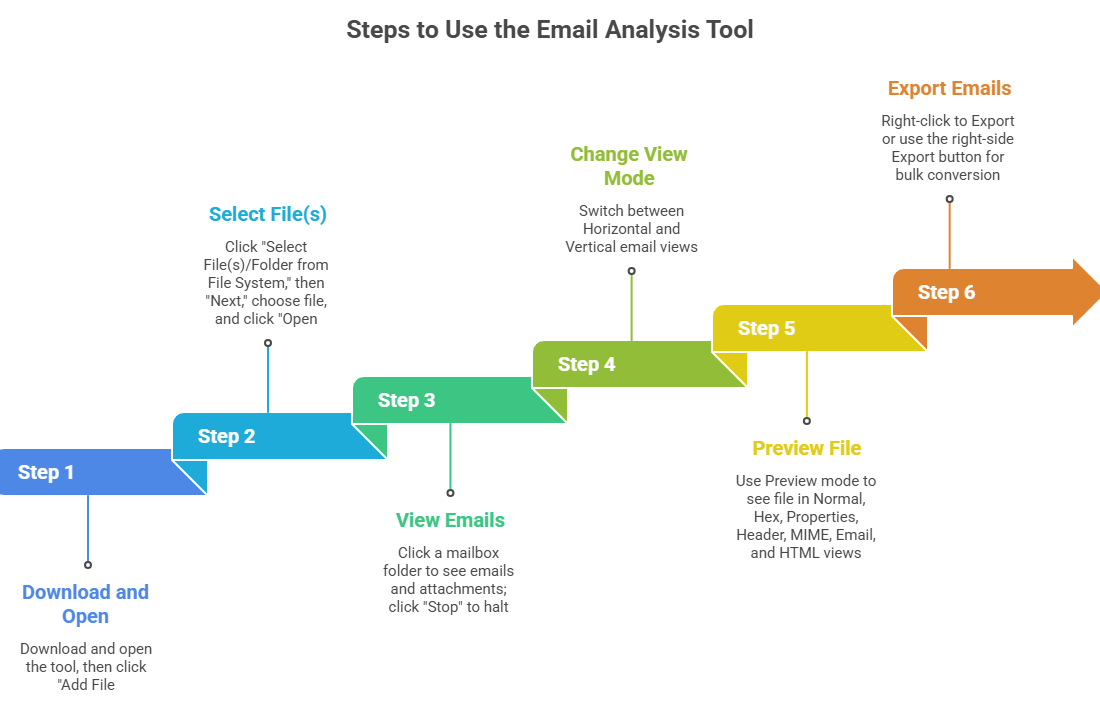
Steps to Use this Tool:
- Download and open the tool and then click on the Add File option.
- Click on the Select File(s)/Folder from File System option. Click on Next and then select the file and click Open.
- In the Mail section click on any mailbox folder to view its emails along with the attachments. You can also stop the process in between by clicking the Stop button.
- You can also change the view mode of the emails which is Horizontal view and Vertical view.
- The Preview mode allows you to see the file in multiple views such as Normal, Hex, Properties, Message Header, MIME, Email and HTML.
- Right-click to choose the Export button or you can also select the right side Export button for bulk conversion.

In most cases you do not need to move your emails you just need a physical copy. If you want to keep a hard copy of your data then you should learn how to print Thunderbird emails to ensure that the layout remains professional and easy to read.
Frequently Asked Questions (FAQs)
1. Can I export Thunderbird emails to PST for free?
No you cannot export emails to PST for free as there is no direct Free button in Thunderbird to create a PST file. You can export the MBOX for free but for that you would need a professional tool.
2. How to make sure I migrate Thunderbird emails with attachments?
The best way is to use a professional tool because the manual method leaves attachments behind or breaks the links to them.
3. Will exporting delete my emails from Thunderbird?
No, when you migrate Thunderbird emails you create a copy. The original emails will stay in the Thunderbird application until you decide to delete them yourself.
4. How long does it take for Thunderbird to export all emails?
If you have 10 years of emails it could take 30 minutes and for a small account it may take just a few seconds. The time taken to export all emails depends on the size and number of emails.
Overview
Above we have covered the three best ways to export Thunderbird emails. From the quick Save As method for single messages to using the ImportExportTools NG add-on for basic backups now you have the tools to manage your data.
Remember that the professional method is an effective way to guarantee that you export Thunderbird emails with attachments without any corruption. Factors such as your mailbox size, technical abilities and long-term needs affect your choice of export method. You can use the manual methods for small exports but for bulk conversion or exporting Thunderbird emails to PST with attachments an expert solution is effective as it has speed and accuracy.
