Print Thunderbird Emails: Easy Steps to Print Messages

Mozilla Thunderbird is a well-known open-source email client application. There are scenarios where printing emails with attachments or large-scale printing is the needful requirement, but it is not an easy task. There is always the right way of knowing how to print Thunderbird emails that can save time and reduce printing errors whether you need hard copies for legal records or offline access.
This guide provides both the manual and the professional methods to print emails from Thunderbird. Before looking at the various methods that help to handle your printing needs, let’s have a look at who actually needs to print these emails.
Hide
Who Needs to Print Thunderbird Emails?
- Legal Professionals and Paralegals
They need to print the emails without headers to keep the focus on the message and print the email list to create a privileged log of correspondence.
- Forensic Investigators
They have to print Thunderbird emails with attachments to ensure that the smoking gun document hidden in a ZIP or PDF file is physically saved along with the email that sent it.
- Human Resource (HR) Departments
The HR requires a clean paper trail for certain keywords related to safety to ensure no record is lost so they print Thunderbird email automatically.
- Small Business Owners and Accountants
They make sure that every invoice in their inbox goes straight to the printer which saves them the manual filing. This is the reason they set their system to print Thunderbird emails automatically.
How to Print Thunderbird Email?
Before looking at the complex configurations, it is important for us to understand the in-house abilities of Thunderbird. Mozilla Thunderbird allows its users to send a single message to a printer with a few clicks by designing its interface to be responsive. When users need to preview or access MBOX files without downloading an email client, an Online MBOX Viewer Tool is a great alternative. It offers instant access to the mailbox data directly through a web browser. Now let’s take a look at how to print these emails by the use of manual methods:
- Open Mozilla Thunderbird on your device and select the message that you want to print.
- Go to the File menu and select Print or you can also press Ctrl + P.
- A print dialog box will appear, after that just click Print.
This method will work for a single message only as the professional requirements demand more control over the output such as removing metadata or handling a lot of files.
How to Print Thunderbird Email With Attachments?
Many users face the problem of printing Thunderbird email with attachments as Mozilla does not provide the option of printing the content of an attached PDF or Word document. You have the following two options if you want to print the emails with attachments:
The Manual Method for Attachments
Step 1: Open the message you want Thunderbird to print.
Step 2: Right-click the attachment at the bottom of the panel.
Step 3: Select Open to open the file in its own application.
Step 4: Return to Thunderbird to print the Thunderbird email body text.
Most users look for plugins to print Thunderbird emails with attachments more effectively. It is impossible to print these emails with attachments manually if you have 100 or more emails. Using a professional tool to print these emails on a large scale is the most practical option for large requirements as it ensures that the formatting of the original document is preserved.
How to Print Thunderbird Email Lists?
Sometimes you only need a directory of your inbox rather than the content of the emails. You can look at the following steps to print the Thunderbird email list:
Step 1: Locate the folder where you want to print the Thunderbird email list.
Step 2: Use the Import Export Tools NG add-on which is the standard for the users.
Step 3: Right-click the folder and select the Import Export Tools NG, then export Folder Index and choose the CSV.
Step 4: Open the CSV in Excel and from here you can print the Thunderbird email list as a clean and organized table.
The ability to print the Thunderbird email list is vital for audit trails as it helps you to know about the sender, subject and timestamp in the correct format. Many legal professionals print the Thunderbird email list before they begin this process in full to keep a summary sheet.
How to Print Thunderbird Email Automatically?
The ability to print emails from Thunderbird automatically as they come can save a lot of time for all businesses. Thunderbird does not have a Print on Arrival button, so you must use the Message Filters to print these emails automatically.
Step 1: Go to Tools and then to Message Filters.
Step 2: Create a new filter and name it print Thunderbird email automatically.
Step 3: Set the criteria.
Step 4: You will need an add-on like FiltaQuilla under actions to enable the Print action as this allows the system to print Thunderbird emails automatically.
Step 5: Save the filter so that every time a matching message arrives, the system will print the Thunderbird email automatically.
In logistics and warehouse management, the requirement to print these emails automatically is common, so make sure that your printer has enough paper and ink. Printing Thunderbird emails without headers, combined with a rule to print these emails automatically is one of the best workflow optimizations.
How to Print Thunderbird Email Without Headers?
Users are often required to print Thunderbird emails without headers for privacy reasons and for better visualisation. Thunderbird, by default includes the sender, recipient, date and the subject at the top of every page. If you want to print these emails without headers, follow these steps:
Step 1: Select the email that you want to document.
Step 2: Go to the View menu in the top toolbar.
Step 3: Select Headers and change the setting from All or Normal to None.
Step 4: The header section will be suppressed when you proceed to print the Thunderbird email.
Step 5: Press Ctrl + P and you will notice that the preview allows you to print Thunderbird email without headers, leaving only the body text.
Many users prefer to use this method for cleaner physical records as the main goal to print emails from Thunderbird without headers is to save space and ink. If you print these emails without a header regularly then you can install the Toggle Headers add-on for quicker access.
Which Method is Better: Manual or Professional
- The manual methods include simple steps to print single emails one by one, while the professional tool is designed for large-scale tasks and can handle thousands of emails in one operation.
- In the manual method the attachments must be opened & printed separately but in the automated tool attachments can be printed together.
- The manual method is a slow and time-consuming process, while the professional tool includes batch processing which saves time.
- The professional tool does not involve risks as it is an automated process, but there are risks in the manual method as there are manual steps involved.
Professional Tool for Bulk & Advanced Printing
If you are a professional and require printing a large number of emails on a regular basis then the automated tool can provide you with great help. The specialized tool is recommended if you want to print emails from Thunderbird on a large scale as this software allows you to bypass the Thunderbird interface which is not possible with the manual methods.
Download Free Trial
100% Safe & Secure
Who Can Use This Tool?
- Legal or Forensics: They use it for evidence while safeguarding their metadata.
- HR Managers: Helps in internal investigations.
- Accountants: This tool helps them with incoming invoices
Note: Before using this software you must have a MBOX File, which you can get through the Import Export Tools NG add-on in Mozilla Thunderbird.
Steps To Use This Tool
Step 1: Launch the tool and click on the Add File button.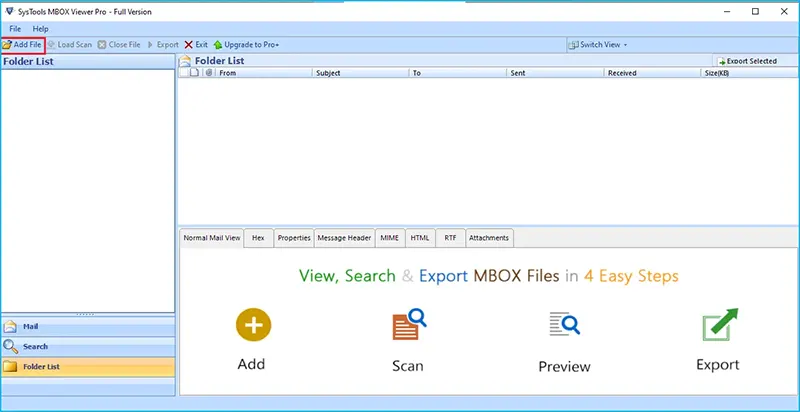
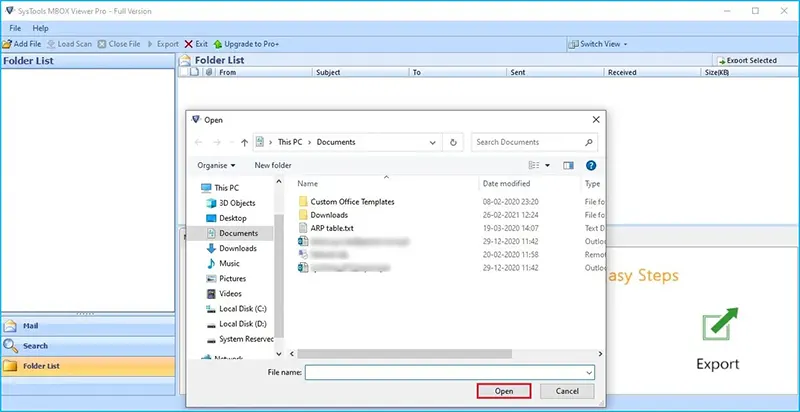
Step 2: After this, to add the desired MBOX file select it and then click on Open
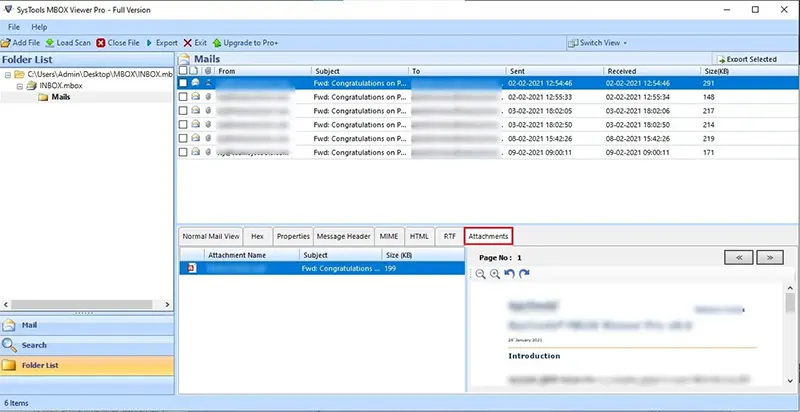
Step 3: The Preview Mode of this software allows you to view the email in different views such as: normal view, hex view, message header view, with attachments and many more.
Step 4: Now, after previewing the MBOX files click on Export button.
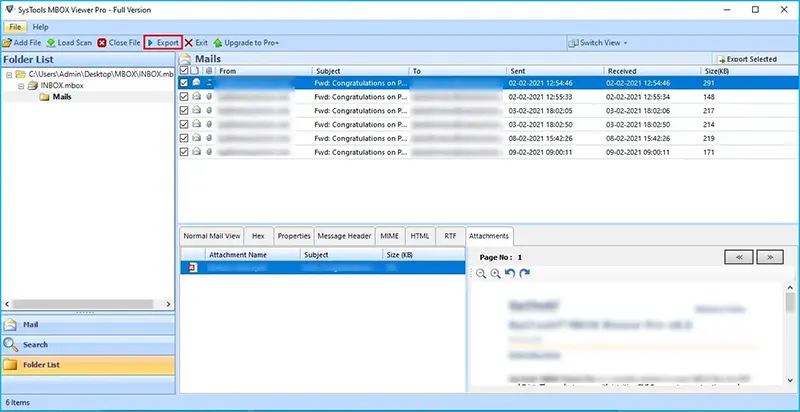
Step 5: Select Export Type as Print to print MBOX files.
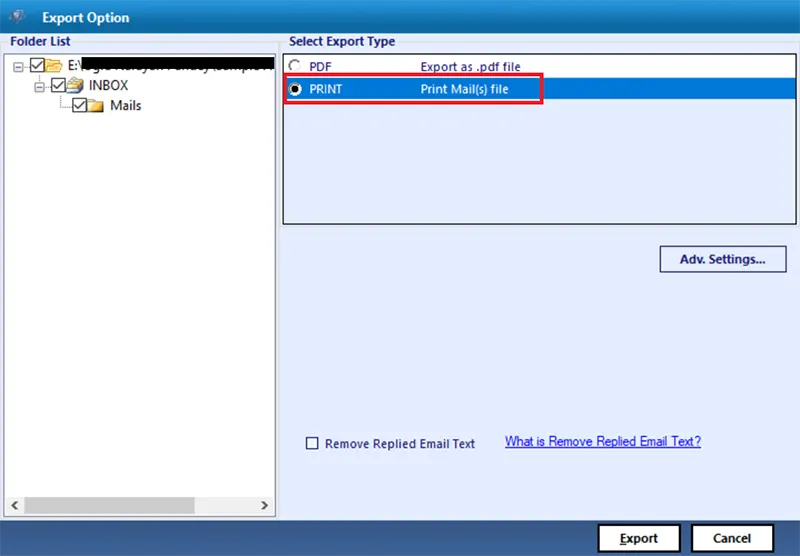
Note: For a more detailed guide on how to use this tool to print emails you can try this .
Why Use This Tool to Print Emails?
- Bulk Processing: You can print a large number of emails with just one click.
- Advanced filters: It allows you to print the emails without headers by selecting the Bates Numbering and Page Layout options.
- Complete the integration: This is an optimized way as it can insert the attachment directly into the PDF or print it at the end of the page.
- Reporting: It helps you to print the Thunderbird email list as an export report for all your records.
- Hands-off: It allows you to print Thunderbird email automatically by converting the entire MBOX folders into a PDF format which is ready to be printed in one go.
By choosing the right technology you can make sure that every time you print an email, the result is accurate and professional.
Summing-up
There is always a solution available, whether you want to print Thunderbird email for a task or set up a system. The manual methods work well for single notes but the professional tool is recommended for those who want to print emails with attachments or without headers. You can make sure that every time you print emails from Thunderbird, the result is professional and readable if you follow this guide.
